How to export model.bim and model.vpax from Power BI Desktop
Lantern draws a Power BI model from two files you export yourself. Both come from free tools that install in a minute and appear in Power BI Desktop under the External Tools tab. Neither file contains any of your data rows; they describe the model, not its contents.
Before you start, once
- Install DAX Studio, free, from daxstudio.org.
- Install Tabular Editor 2, free, from the Tabular Editor releases page on GitHub.
- Open your .pbix in Power BI Desktop. The External Tools tab appears once either tool is installed.
model.vpax, from DAX Studio
- In Power BI Desktop: External Tools → DAX Studio. It opens connected to your model.
- In DAX Studio: Advanced → Export Metrics. Save the file as model.vpax.
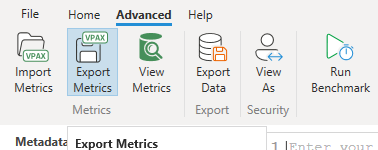
It takes seconds on a small model and up to a minute on a large one. The file is a zip holding statistics about every table and column, rows, size, distinct values, plus a copy of the model's definition.
model.bim, from Tabular Editor
- In Power BI Desktop: External Tools → Tabular Editor. It opens connected to your model.
- In Tabular Editor: File → Save As. Save the file as model.bim.
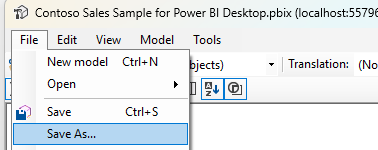
The file is the model's definition as JSON: tables, columns, relationships, measures with their DAX, and each table's Power Query steps.
Then
Drop both files on lanternbi.com. The drawing is made inside your browser. The files never leave your machine.
Good to know
- The same two steps work when the tools are connected to a published dataset through an XMLA endpoint.
- Both files contain names, formulas and data source addresses from your model. Treat them like you treat the .pbix itself.